

Are you ready to bid farewell to your Amazon seller account and contemplate the question, “How do I close my seller account on Amazon?” You’re not alone. Many sellers reach a point where they consider the best way to exit the Amazon marketplace gracefully. Whether it’s due to shifting priorities, business restructuring, or simply seeking new opportunities, knowing the right steps to close your seller account is crucial.
Amazon has become a retail giant, with millions of sellers worldwide. However, not every journey on this platform lasts forever. Closing your Amazon seller account isn’t as simple as flipping a switch. It involves several steps to ensure a smooth transition and mitigate any potential complications. This post provides a step-by-step guide on how to close/delete your Amazon seller account, what you need to consider before the closure, and what are some of the alternates to permanently closing your account.
Things to Consider Before Permanently Closing/ Deleting Your Amazon Seller Account
Closing an Amazon seller account means permanently deleting that account. So, before you close any seller account, you must consider certain things and learn about the consequences.
1. Evaluate Your Business
Before proceeding with closing your Amazon seller account, take a moment to assess your business situation. Consider factors such as:
- Analyze your sales data, profit margins, and overall financial health.
- Determine the status of your inventory, including stock levels and fulfillment obligations.
- Review any contractual agreements with suppliers, distributors, or Amazon itself.
- Consider how your exit will affect your customers and any outstanding orders or inquiries.
2. Resolve Any Outstanding Issues
To close your Amazon seller account smoothly, it’s crucial to resolve any outstanding issues beforehand, which include:
- Fulfill pending orders: Ensure all customer orders are fulfilled and shipped promptly.
- Settle your payments: Pay any outstanding fees or debts owed to Amazon, including FBA storage fees or service charges.
- Recover your FBA inventory: Recover or dispose of all your products from Amazon fulfillment centers. You need to request Amazon to return or dispose of your remaining inventory. This removal process can take several days and shipments. It is important to start the removal process before deleting your listings to avoid ‘stranded inventory’.
- Ensure a zero balance: Confirm your Amazon account balance is $0.00, as Amazon can’t process payments or withdrawals with an outstanding balance. If you owe money, make a payment; if you’re on credit, provide bank details for final payment.
- Observe the 90-day waiting period: Amazon requires a 90-day wait from your last sale before account closure. This period ensures open A-to-Z Guarantee claims are resolved. If you have pending claims, keep your account open until they’re settled.
3. Communicate with Stakeholders
As you wind down your Amazon seller account, it’s essential to communicate your exit strategy with relevant stakeholders:
- Notify your customers about your closure and provide them with alternative purchasing options or contact information.
- Inform your suppliers or distributors about your decision to close your Amazon account and settle any outstanding agreements or obligations.
- If applicable, notify any employees or team members involved in managing your Amazon operations about the closure and transition plan.
What Happens After Your Amazon Account is Closed?
Closing means permanently deleting Amazon account. After the closure of your Amazon seller account, the following changes will take effect:
- A closed account cannot be reactivated or reinstated. So, you have to create a new account for selling on Amazon again.
- All product listings, along with any related information and images, will be permanently deleted.
- You will lose access to your account balance, order history, return processing, refund issuance, A-to-Z Guarantee claims, and buyer communication.
- If you close a North American Unified Account, associated accounts in other regions (such as Canada and Mexico) will also be closed.
- Closing an Amazon Europe Marketplaces Account will result in the closure of your account across all European marketplaces.
- Any gift cards associated with the account will no longer be usable.
How to Close Your Amazon Account: Step-by-Step Process
Now that you’ve addressed the pre-closure issues, it’s time to initiate the account closure process. Here’s how:
1. Log in to your Amazon seller account and go to the Settings menu.
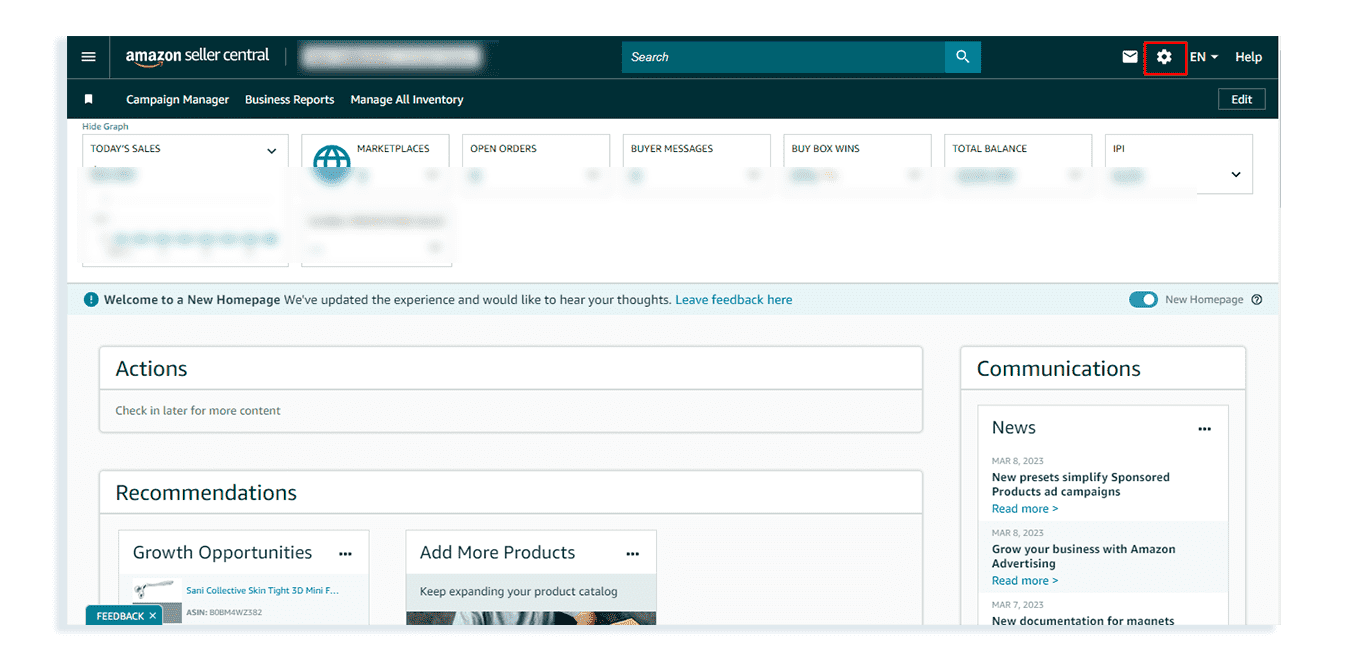
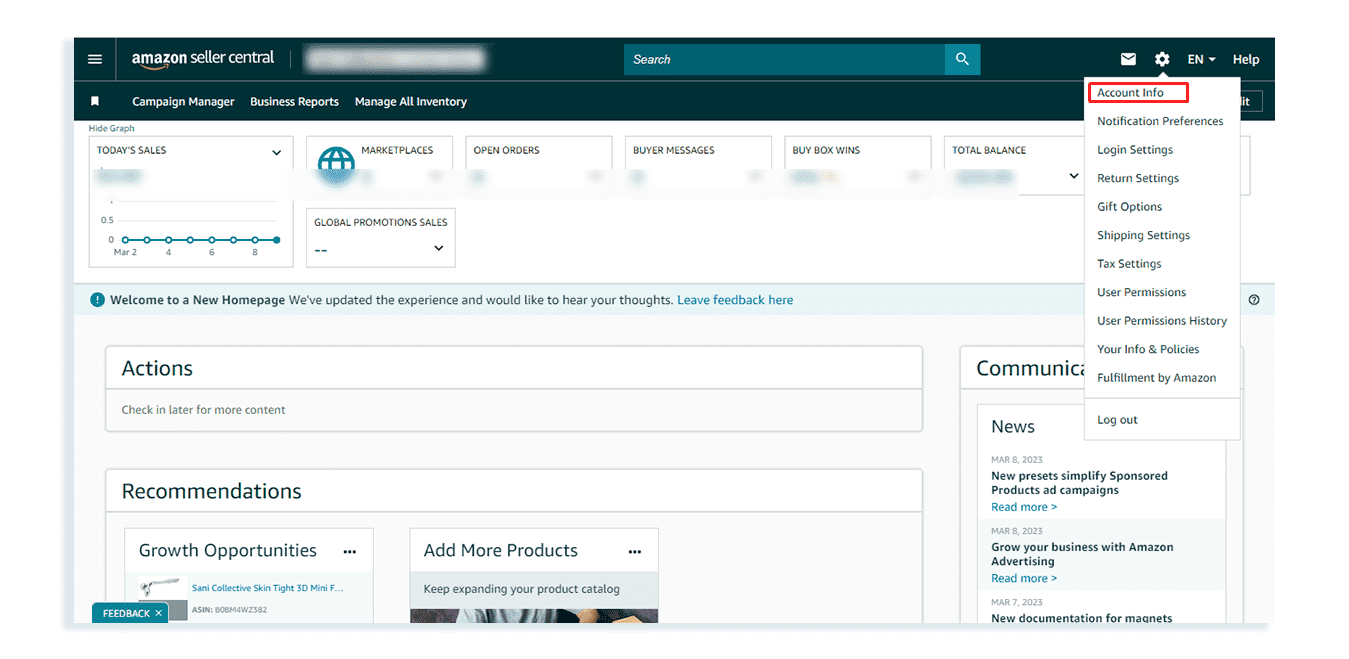
2. Select the Account Info tab.
3. Scroll down and select the Close Account section.
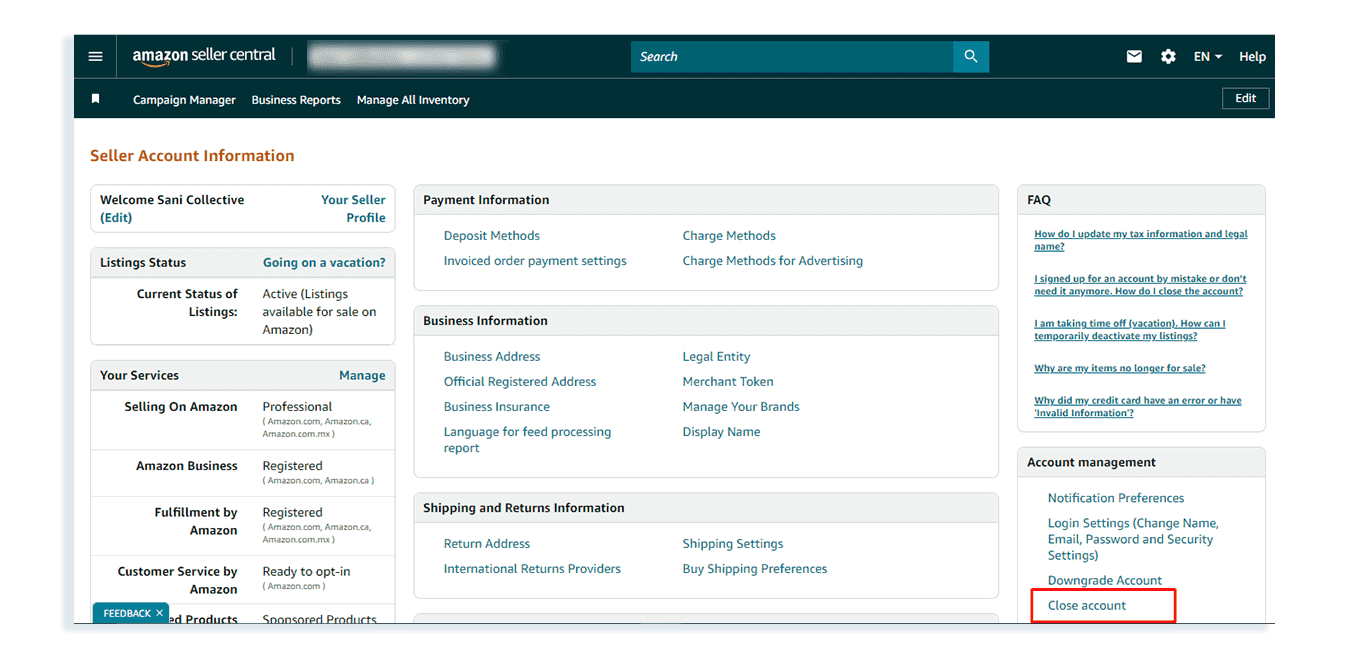
4. Review the Information and select the Request account closure option.
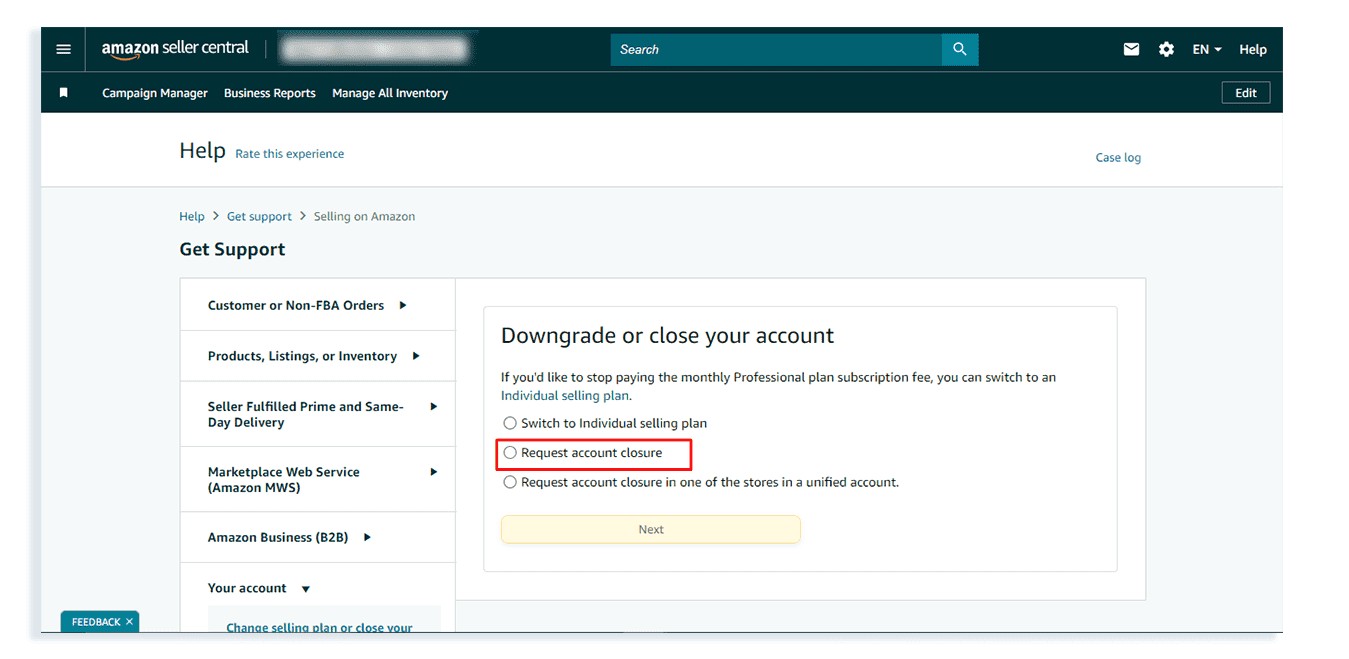
5. Follow the instructions to provide further information and confirm closure.
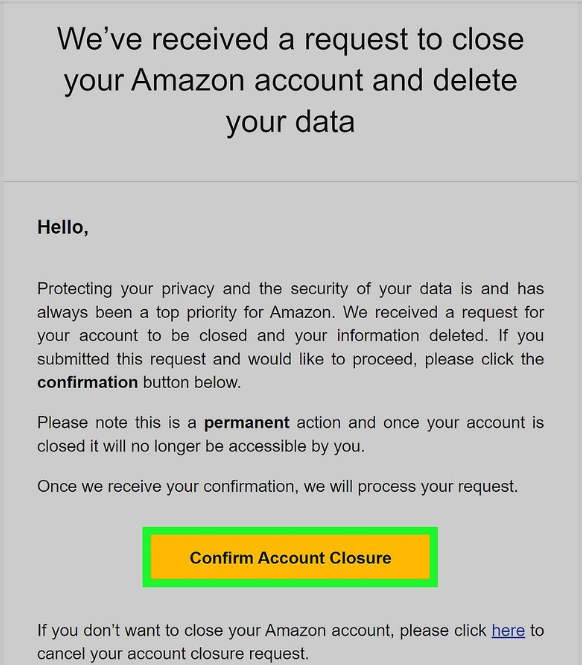
A confirmation notification will be sent to you via email or text message. You have to respond to the notification within 5 days to verify the closure request.
Monitor the Closure Process
After initiating the closure process, monitor your Amazon account to ensure that it is successfully deactivated and any associated services, such as FBA inventory removal, are completed. Additionally, keep an eye on your email for any follow-up communications from Amazon regarding the closure.
Here are the key highlights of the Account Deletion Confirmation Email:
- The email will explicitly confirm the closure of your Amazon account, affirming that it is no longer active.
- You’ll be notified that all your personal information, encompassing payment details and order history, has been deleted from Amazon’s servers.
- If you maintain any active subscriptions tied to your Amazon account, the email will confirm their termination.
- If you wish to reverse the closure or if it was accidental, the email may provide guidance on how to recover your account.
- Expect to find Amazon’s customer service contact details in the email for further assistance or inquiries.
How Long Does it Take Amazon to Close a Seller Account?
Account closure cannot take place within the 90-day period from the date of the last sale. This period is to ensure that you fulfill your A-to-z Guarantee claims before closure. Also, you must make your account balance zero before the account closure.
If you have separate regional accounts, then each account must be closed individually. You will be charged if you have a professional selling plan if any account remains open.
After this period, Amazon typically processes account closure requests within a few business days. If you need clarification on the timeline or have specific concerns regarding your account closure, reaching out to Amazon Seller Support for assistance can provide further clarity.
What are the Alternatives to Permanently Closing Your Amazon Seller Account?
1. Downgrade to a Free (Individual) Seller Account: If you don’t want to pay the monthly Professional seller subscription, you can downgrade your plan to an individual account. You’ll still be able to use the account and learn from it, and you’ll just pay per sale rather than paying a monthly fee.
2. Delete Old Product Listings: Instead of closing your whole account, you can remove individual product listings you no longer want to sell. This reduces workload and costs without shutting down your entire seller presence.
3. Activate Vacation Mode: If you need a break from selling, you can put your account into vacation mode. Your listings will stay visible, but customers can’t purchase them until you turn vacation mode off.
4. Sell Your Amazon Business/Account: Another alternative is selling your Amazon FBA business rather than closing it. Some accounts/businesses have significant resale value, particularly if they have a sales history and profit.
Final Thoughts
While closing your Amazon seller account can be a daunting task, it’s essential to approach it with diligence and attention to detail. Following the steps laid out in this guide ensures the complete removal of your account from Amazon’s databases. However, navigating this process alone can be overwhelming. That’s where SPCTEK comes in.
SPCTEK is a leading consultancy firm specializing in e-commerce solutions, including Amazon account management and closure assistance. Our team of experts can guide you through every step of the closure process, ensuring compliance with Amazon’s policies and minimizing any potential disruptions to your business.
Ready to close your Amazon seller account gracefully? Contact SPCTEK today for personalized assistance and make your exit from the Amazon marketplace a seamless experience.